Getting Started With Linux: The Beginner’s Brief
There’s been a lot of fuss about Linux in the past couple of months (and years), and it hasn’t exactly come from nowhere. A huge cultural shift has taken place due to the perceived lack of control over the devices we own and use everyday.
Companies such as Microsoft are now seen by some, whether accurately or not, as prioritising their interests to the extreme over the consumer. This has meant the desire for an alternative platform for desktop computing has been slowly growing, and all the while Linux has been making strides to provide a better and better experience for users.
Contents
Some Context and History⌗
So, you’ve just heard about Linux and want to know more about what it is and what it can do for you. Let’s start with a bit of context and a Cliff Notes version of Linux’s history.
Linux itself is a kernel, used as the medium to communicate between the hardware and software layers of your computer. Since it’s inception people have contributed and built software on top of the Linux kernel to provide the other needs of a desktop experience such as filesystems, audio management and much much more. The combination of this software and the Linux kernel is colloquially known as Linux for simplicities sake.
Linux began as a project built by Linus Torvalds in 1991 as a hobbyist project. He eventually released it to the public and subsequently others improved and built upon his work. Alongside other key contributors, he has spent the subsequent years as a steward of the Linux kernel to help guide the direction of the project. The key point here is that the code behind Linux is available to anyone to share, modify and use.
You can now find Linux everywhere, from Android smartphones, point-of-sale machines, smart devices to servers that power the cloud. At some point you or your device has interacted with a Linux system, perhaps without you even knowing it.

Why Should I Use Linux?⌗
As mentioned before, one of the most significant draws to Linux is the control. You can choose to let the operating system (OS) handle everything for you, or you can decide how you want to customise the desktop, what specific version to run, how much storage to allocate where, the list goes on and on.
Another large yet often understated reason is that Linux will often have more user-centric defaults than other operating systems. This eases the friction of migrating and also avoids intermittent annoyances that you find in other solutions, such as immediate reboots, clingy web browsers or forced online backups. Although you will inevitably run into minor issues with Linux (no OS is perfect), they will often be one-and-done issues that are easy to fix with a quick online search.
Linux also provides a safe haven against spyware, adware and other potentially malicious activities that would run on other operating systems but can’t on Linux. In addition, Linux can feature more sane defaults for security, meaning that most apps work securely out of the box without having to allow permissions or go down rabbit holes. It must be noted however that although Linux on desktop is absent of most malware, with the uptick in adoption this may change in the future.
How Can I Install Linux?⌗
There’s three main ways you can use Linux, but only the first two are particularly usable in day-to-day situations, dual-booting and standalone Linux. Before you jump in, make sure to keep backups of your data (you should be doing this anyway!) as you don’t want to lose it.
Dual-Boot⌗
The first, and most versatile option is to install Linux alongside your existing Windows installation. Granted you have enough storage to share two operating systems, when you power on your computer, you can choose what operating system you want to launch. It’s often useful if you want to keep Windows for apps that can’t run on Linux such as games like Valorant, a game which requires full access to your computer for you to play.
Standalone⌗
When you run Linux on it’s own you forgo Windows, replacing your drive in it’s entirety with Linux. This is the simplest option, but is the most irreversable of the three. Before you make this step, you should have an idea of what software you already use, and potential alternatives if they do not already exist on Linux.
Virtualised⌗
Virtualised Linux runs on your machine on top of the operating system you already use. This makes it easy to test different versions of Linux, or experiment with and break the system without causing damage or changing your host operating system. However, you need to set up a virtual environment using software such as QEMU or VirtualBox. In addition, virtual machines often lack graphically accelerated environments, which can mean that games and browsers can appear slow or non-responsive.
What’s a Desktop Environment?⌗
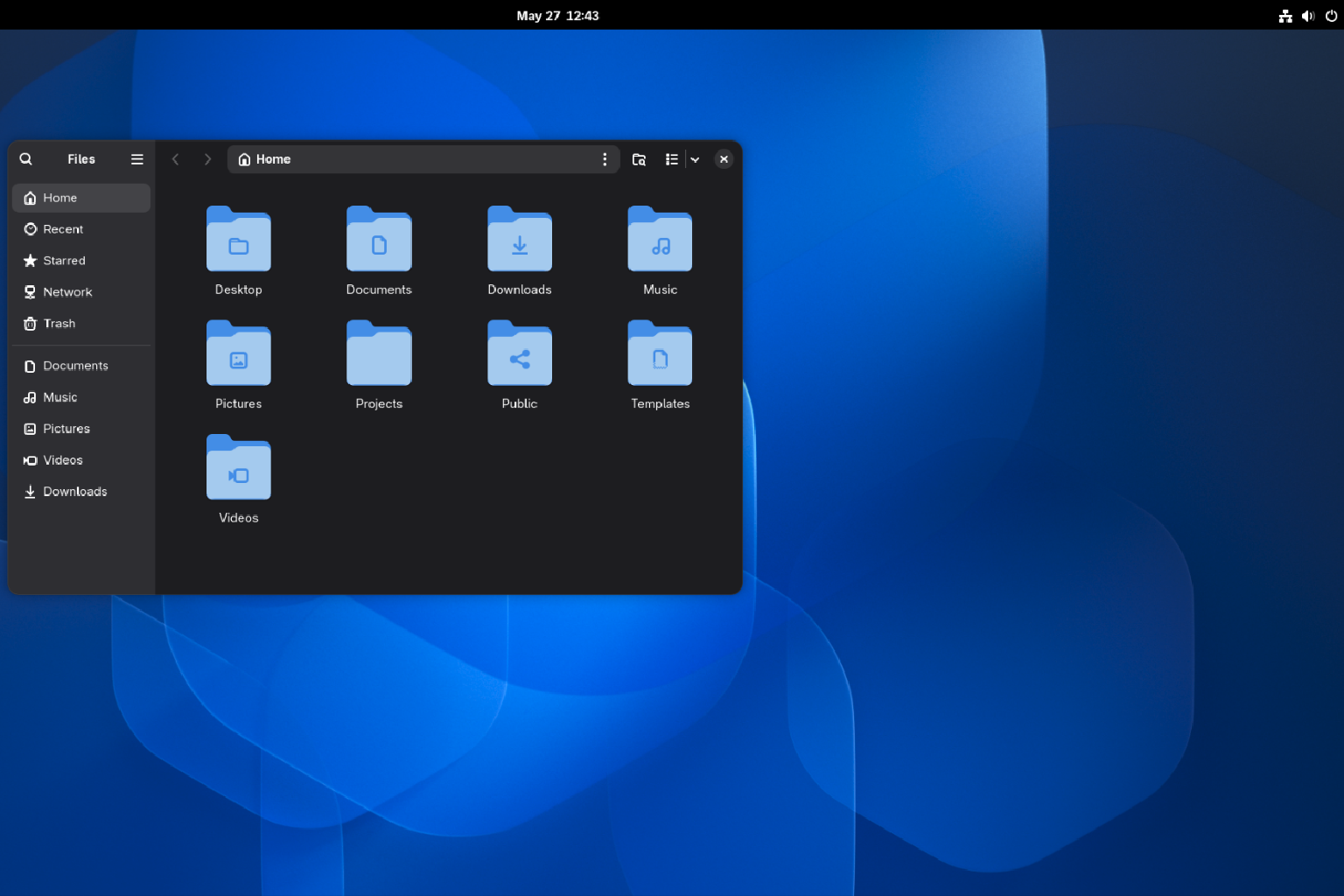
A desktop environment provides the tools and programs you need to interface with the operating system, run apps and play games in a graphical format. Because users have different requirements and preferences with how they use their computer and how information is presented to them, several desktop environments exist to cater to these specific needs. If you’re on Windows, KDE is the biggest analogue, providing a similar layout to the default Windows environment. MacOS users may find that GNOME is similar to their preferences.
KDE⌗
KDE is a desktop environment that embraces customisation and openness. Although it’s default layout is quite similar to that of Windows, you can significantly change how information is accessed and displayed to the user, a process called ricing.
GNOME⌗
GNOME is an environment which can be described as highly specific with how it presents information to the user. It’s most similar analogue is to MacOS, and it likes to keep it’s desktop decluttered. Pressing the Windows key gives you a powerful search tool and access to your apps. You can extend the functionality of GNOME through extensions, which add and modify widgets and formats to provide more information.
XFCE⌗
XFCE is notable for it’s simplicity and low resource usage. If you’ve got an old laptop struggling with heavier operating systems and desktop environments, XFCE is a perfect choice to revitalise it and give it a new lease on life.
Anything Else?⌗
There are countless other desktop environments for you to use and explore, some which may fill your niche better than any other environment. You can even move away from desktop environments to tiling window mangers which automatically organise your windows neatly. The choice is yours.
What’s a Distro (Distribution), and Which Do I Pick?⌗
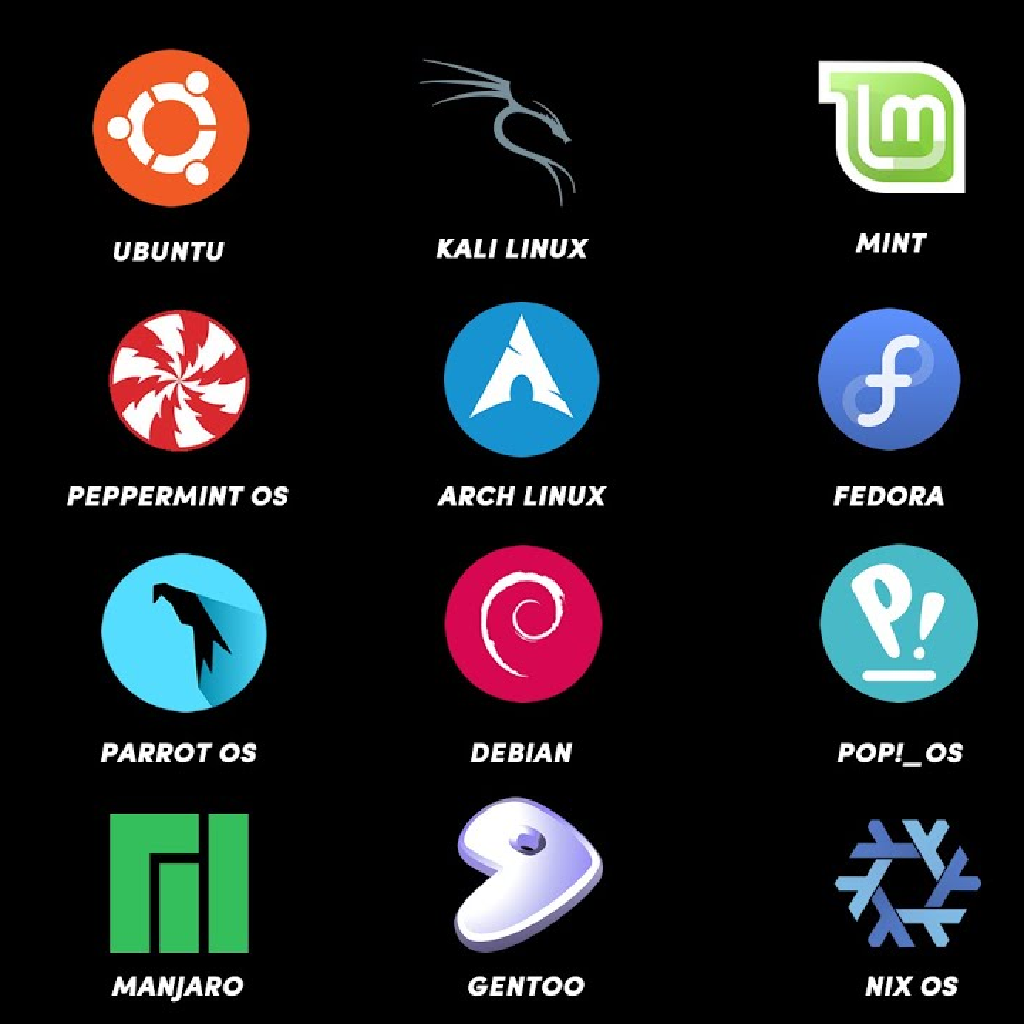
There are a million (or possibly more) versions of Linux that you can use. These are known as distros, or distributions, and each distro bundles a collection of software including the kernel, Linux, desktop environment and other pre-installed applications and tools for you to use.
Ultimately, your choice to use a certain distro will be dictated by three major aspects:
What desktop environment the distribution supports. Some distros support multiple, or others have many but actively support a handful.
How recent the software versions used by the distro are. Some distros are bleeding-edge, meaning you get the latest features and performance improvements. Other distros are stable, meaning they prefer a more consistent user experience over always having the latest improvements.
What customisation the distro uses. Some distros don’t apply much customisation on top of the desktop environment, but others can theme or completely reinvent a desktop environment into something completely different.
Some examples of notable distributions can be seen below, and give you an idea of what differences exist.
Fedora Silverblue/Kinoite⌗
Fedora Silverblue and Kinoite are immutable distros based on GNOME and KDE respectively. This immmutability means that the Silverblue and Kinoite distros are not readily modifiable by the end user, and it keeps several versions of the operating system available. This is akin to how Android operates, making sure that a usable operating system is always ready no matter what issues occur or are induced by the user. You can think of it as idiot-proof (and we’re all idiots sometimes).
CachyOS⌗
CachyOS is a distribution based on Arch Linux, a bleeding-edge (constantly using the newest versions of software) Linux variant. It’s configured for performance in games, but you can choose what desktop environment you want to use. It’s primarily a community effort and is an excellent choice if you almost exclusively use your computer for gaming. However, new Linux users may want something more stable.
Ubuntu⌗
Ubuntu is the legacy choice as a distro. It uses GNOME by default, although other supported desktop environments exist. It’s one of the oldest commercially supported operating systems, although it’s somewhat fallen out of favour for other distributions which provide newer or better software choices and more reliability. It has a substantial catalogue of forum posts for guidance and advice.
Yet Another Distro⌗
More often than not, you’ll see other distros that have features or a fancy look that grabs your attention. Before you jump in though it’s a good idea to see how other people feel using the distro. If there’s large swathes of people commenting chances are it’s well supported and should be into the future.
How do I Use Linux?⌗
By this point in the article, you should have a decent understanding of the ecosystem before you jump in. There’s a lot of choice involved and it’s understandable to get analysis paralysis, but nothing beats choosing a good-enough distro and jumping straight in. For the most part, you’ll be using and learning it like you would any other program, and given enough time you’ll figure it all out.
However, there’ll be times when you’ll realise that there’s several significant changes to how Linux works, especially if you’re coming from Windows. Let’s discuss the major ones.
The Filesystem⌗
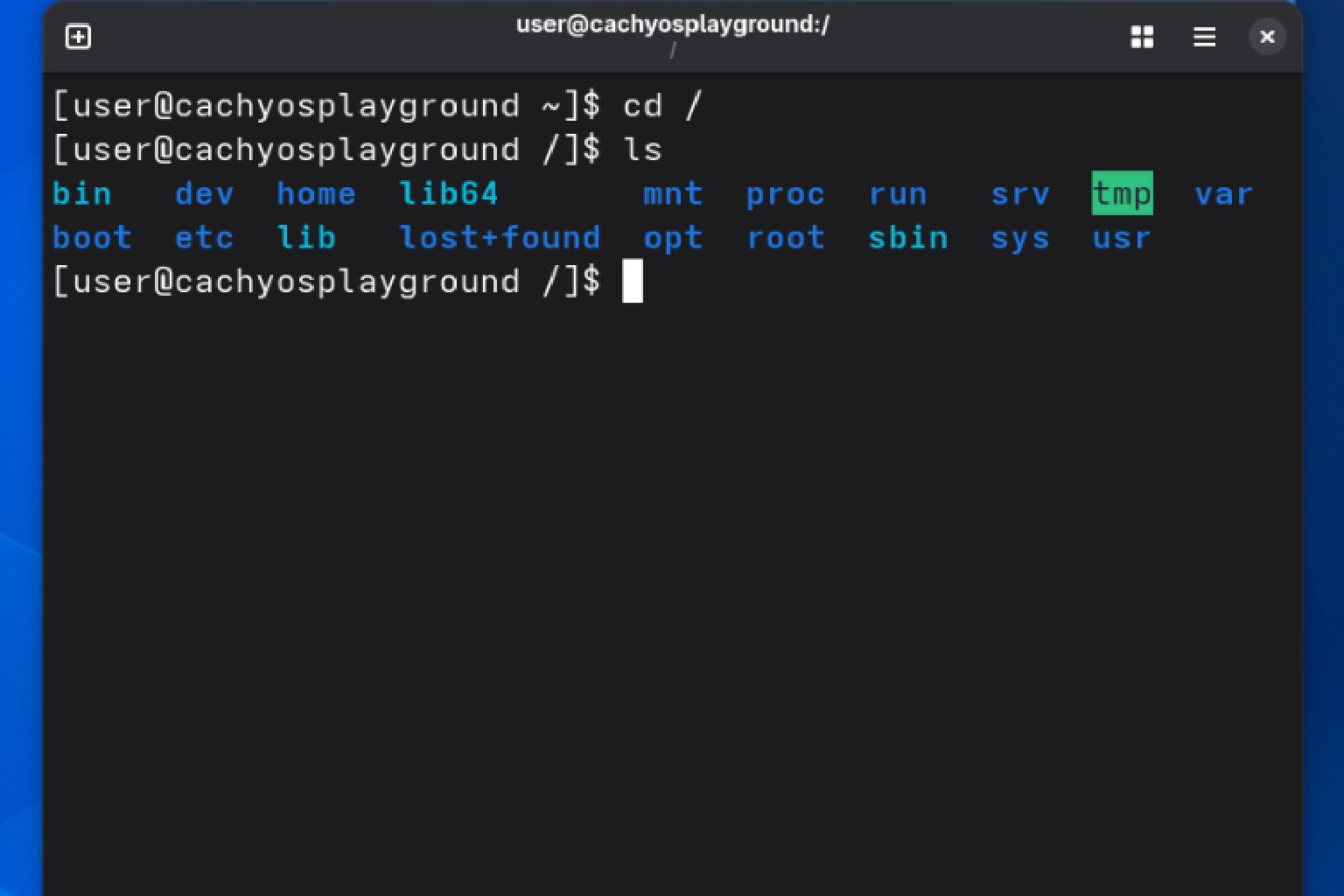
If you’ve used a MacOS system before you’ll realise how similar the filesystem is. That’s because they’re UNIX-like, both based on an ancestor operating system that shares a similar filesystem structure. At the heart of the Linux filesystem is the root directory (/), the point from which all directories (also known as folders, broadly interchangeable terms) are placed or stem from, sort of like the C:\ folder in Windows.
From the root directory, there are several different directories with different functions and uses. However, you won’t need to use or interact with all of them. Some important ones are listed below:
/home⌗
This directory is where all the user’s personal data is stored, under their own directories named after their usernames. You’ll find directories such as Documents, Videos, Music etc. in this directory and all of your per-user configuration files are stored here.
/etc⌗
The /etc directory stores configuration files for application specific system-wide configurations. Always be careful before changing these, as you may end up with an unbootable system!
/bin⌗
This is where your app binaries are stored, such as your web browser. You can think of it like a dedicated space for your .exe files on Windows.
/media and /mnt⌗
The /media directory is most often used for removable media, such as USB drives or microSD cards. On the other hand, /mnt is used to mount secondary persistent drives such as an internal hard-drive to expand the storage of your main drive where the root directory lives.
There are a multitude of other important directories serving different functions, but like most listed above, you have little need to interact with them outside of your /home directory.
The Terminal⌗
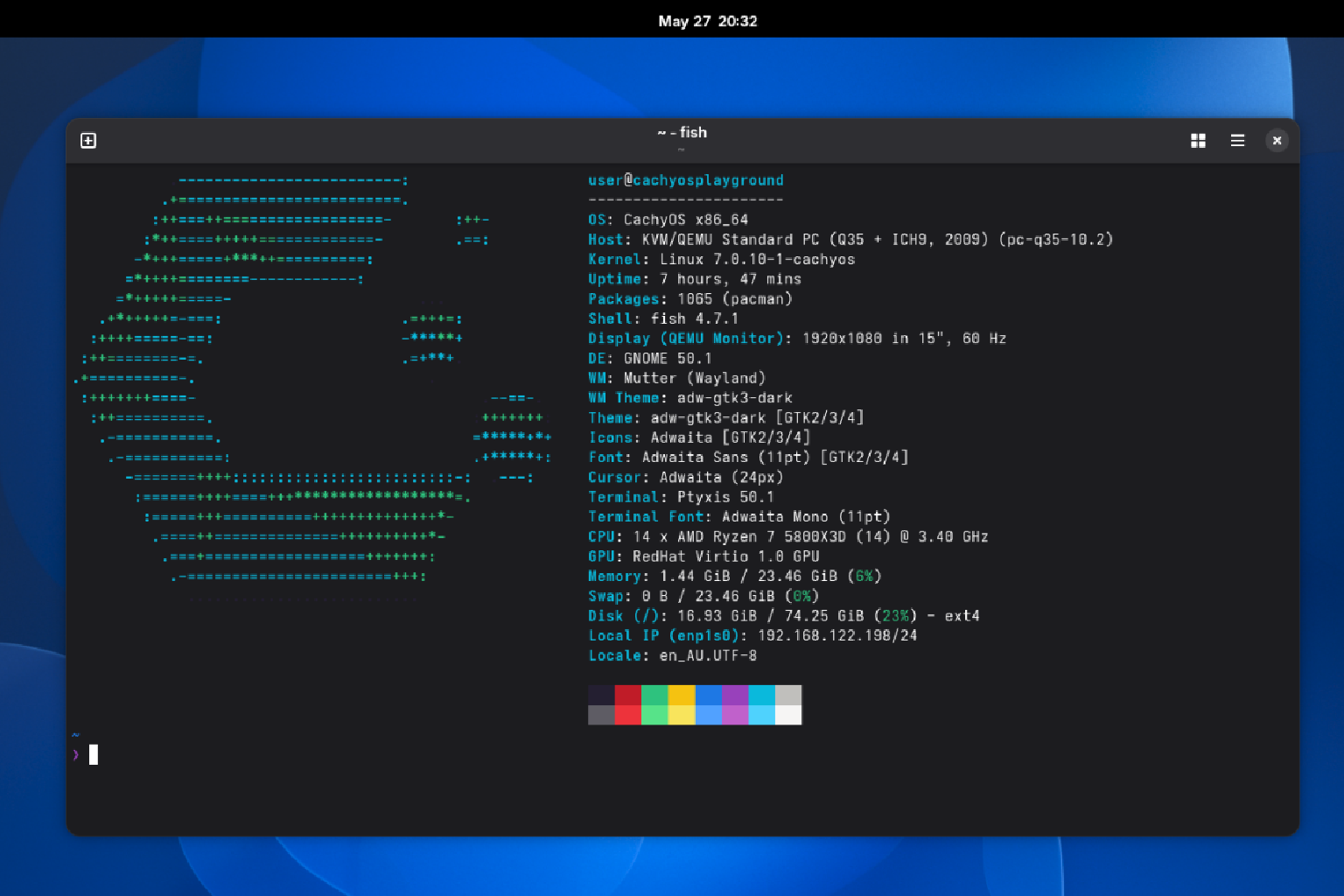
The Linux terminal can often seem an oppressive or daunting barrier to entry to Linux. Your experience with it, however, all depends on how you approach it. When you think of it as a way to dictate tasks for the computer to conduct, it’s very much akin to how you use an operating system already, such as when you move files from one folder to another.
On some distros you can go without using the terminal at all as they provide other means to download software or edit files, for example. You can however use it to run programs and apps, create, move and delete files and much more, just by using your keyboard. Let’s explore some basic commands:
The cd Command⌗
cd
This command, when combined with a path relocates your terminal’s current working directory (the directory/folder you have open) to the path specified in the command.
cd ~/Documents
Will relocate your terminal to your user’s Documents folder. The ~/ specifies the path is relative to your /home directory, meaning any directory after ~/ should exist in your /home directory. Documents refers to the Documents directory in your home folder.
You can also use absolute paths (paths that start from the root directory), such as the following:
cd /var/lib
This is three directories deep, starting at the root directory, then usr, and then etc.
Another relative path you might need is exiting a directory and moving to it’s parent directory. If you’re stuck in /var/lib and you want to get back to /var, you can issue the following:
cd ../
Which will send you back one directory. The full stop is also relative, with one sending you to the current directory, and three sending you back two directories, if possible.
cd ./
Will keep you where you are, in /var/lib.
cd .../
Will send you back to the root directory from /var/lib.
The ls Command⌗
ls
This command lists all of the files and directories in your current working directory. It’s simple, but you can use what are called arguments to modify how the command works. For example:
ls -l
Will provide you with information about the file or directory, such as when it was created, what user owns it and what file permissions exist.
Ultimately, there are a plethora of Linux commands out there for all sorts of use cases but be sure to check what it does first before you run it. Plenty of users, myself included, have ran commands without understanding how it’ll impact their system and paid the price for it. You don’t need to be an expert, but knowing just enough can keep you out of trouble.
The Package Manager⌗
The final major piece of the Linux puzzle is the package manager. Instead of downloading your programs and apps from the internet, you download a package (a program) from a central location, called a repository. You can think of it like buying items from several stores versus going to a warehouse to get them all at once. This is a more modern, convenient and safer method of installing software.
However, different distros can use different package managers. Almost all of the time they operate in the same way, grabbing updates or new packages for your system to install and use. They can instead use different commands to accomplish the same tasks. For example, on a Debian or Ubuntu system you may type the command sudo apt update && sudo apt upgrade which checks if new packages exist, and download and install them if so. CachyOS might use pacman -Syu, which accomplishes the same thing.
On most beginner friendly distros, you may not need to interact with the package manager at all outside of hitting the ‘update’ button in your software manager app.
Are There Any Learning Resources You Recommend?⌗
When you’re using a new operating system, it can be overwhelming to get started and know where things are. Here are some prepared learning resources of varying types and formats to get you started.
The Arch Wiki⌗
The Arch wiki is an excellent wiki resource to learn about specific programs and services used in Linux and it’s distributions. It provides some advice on recommended configurations as well as system maintenance and configuration guidance.
It’s useful for advanced users going off the beaten path, and will become an incredibly useful resource once you’ve mastered the basics. Note that their package installation commands will reference pacman, Arch Linux’s package manager. Yours might be different.
YouTube⌗
Linus Tech Tips is an accessible and popular YouTube channel which talks about computers. Videos can explain how to install Linux or what distro to pick. Likewise Explaining Computers gives an excellent breakdown of what to look for when picking a distro, and some reccomendations.
Forums⌗
Reddit forums can often be a great communal resource for troubleshooting and general guidance.The Swinux Discord is always a good place to ask fellow students. In addition, Stackoverflow is a good resource with tons of user contributions.
Using AI⌗
If you’re keen on AI, it can be a good resource to bounce ideas off of and guide you through simple troubleshooting steps. As always, verify with another source as AI can hallucinate or provide inappropriate advice for your situation.
This post is redistributed from timfo.xyz with permission from the author.